To print double-sided flash cards, make a page of fronts and a page of backs with the backs mirrored left to right, then print with "Print on both sides" and "Flip on long edge" turned on. Each answer lands behind its question. Cut along the dashed lines and check the first card before cutting the whole stack.
Published October 24, 2026
By Paper Cabinet
The mirroring is the part most people get wrong when they make cards in a word processor. Our flash card maker does it for you: type one card per line with a dash between the front and the back, and the backs print in the right order.
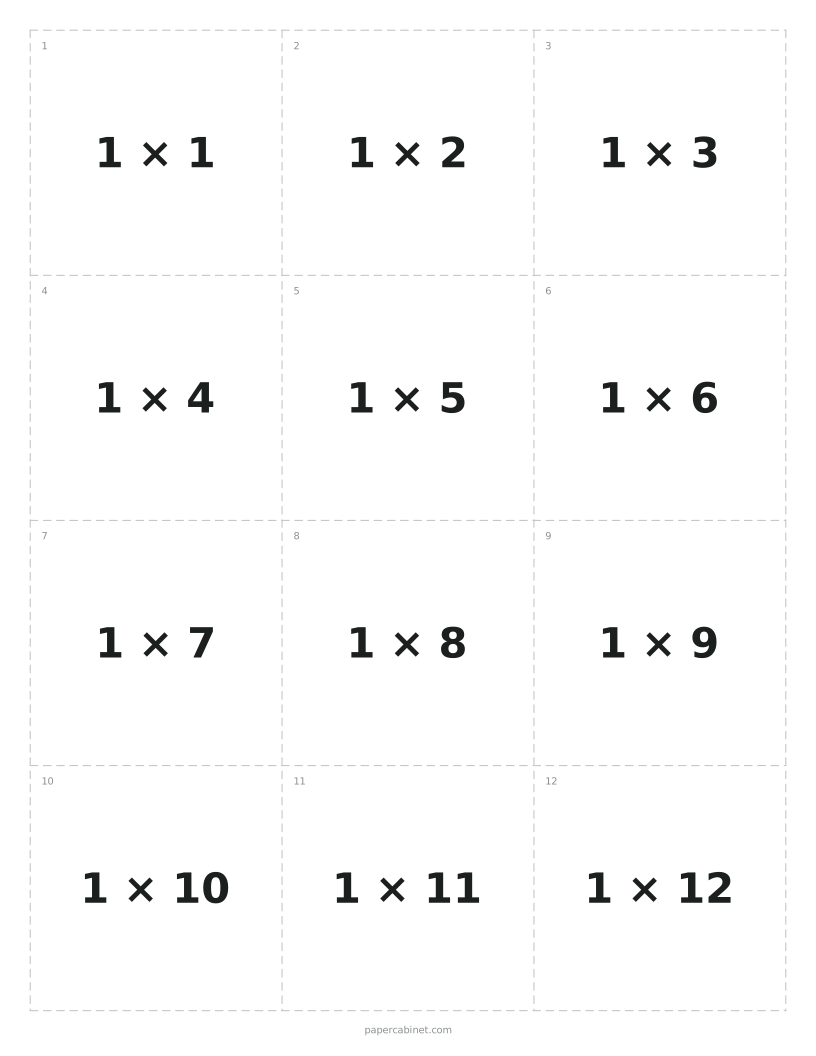
Fronts of the multiplication flash cards. The answers print on the next page.
Why Do the Backs Have to Be Mirrored?
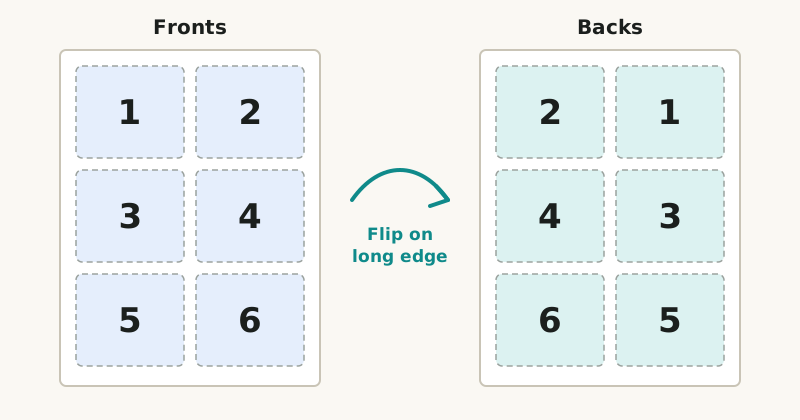
When you turn a sheet over along its long edge, the left column ends up on the right. A card printed top left on the front sits top right on the back. So the back page has to print each row in reverse order, or every answer ends up behind the wrong card.
Flipping on the long edge swaps left and right. The backs are printed in mirror order to match.
Rows stay in the same order top to bottom, which is why it has to be the long edge. Flipping on the short edge turns the page upside down as well, and the backs land in the wrong rows.
Step by Step
Type your cards, one per line: photosynthesis - how plants make food from light. A dash, colon or tab separates the front from the back.
Pick a card size: large (4 a page), medium (8) or small (12).
Press Print. In the print window, set scale to 100% (or "Actual size") and margins to "None".
Turn on "Print on both sides" (some printers call it "two-sided" or "duplex") and choose "Flip on long edge".
Print one sheet first and hold it up to a window. Each front should line up with its back.
Print the rest, then cut along the dashed lines.
Prefer a file? Press PDF instead of Print and the cards save as a PDF in the same order, ready to send to a print shop or a school copier.
If Your Printer Only Prints One Side
Print the odd pages first (the fronts), then put the stack back in the paper tray and print the even pages (the backs). Which way the stack goes back in depends on the printer.
Tip. Before the real run, mark the top of one blank sheet with an arrow, print a single page, and see where the arrow ends up. That tells you which way to load the paper for the second side.
Which Card Size Should You Use?
Size
Cards per page
Approximate size on Letter paper
Good for
Large
4
4 by 5 inches
Alphabet, numbers and words for young children
Medium
8
4 by 2.6 inches
Vocabulary, sight words and spelling
Small
12
2.6 by 2.6 inches
Math facts and states and capitals
Each card has a small number in the corner. If the cards get shuffled before the backs are attached, the number on the front matches the number on its back.
Paper and Cutting
Plain printer paper works, but you can see the answer through it when you hold a card up. Cardstock of 65 lb or heavier stops that and survives a lot more shuffling. For cards a class will use all year, laminate the sheets before cutting.
A paper trimmer gives straight edges and handles a stack of 50 cards in a few minutes. With scissors, cut the long lines first to make strips, then cut each strip into cards.
Ready-Made Sets
You do not have to type everything. These open with the cards already filled in:
Do I flip on the long edge or short edge for flash cards? +
The long edge, for portrait pages. The backs are mirrored left to right to match a long-edge flip. A short-edge flip turns the page upside down and the backs land on the wrong cards.
Why don't my flash card backs line up? +
Usually the scale. If the print window shrinks the page to fit, the fronts and backs shift by different amounts. Set scale to 100% or "Actual size" and margins to "None", then print a test sheet.
Can I make one-sided flash cards? +
Yes. Leave out the dash and the back on each line. If no card has a back, only the front pages print.
How many flash cards can I make at once? +
Up to 150 in one go. That is 13 pages of medium cards, plus the same number of back pages.